
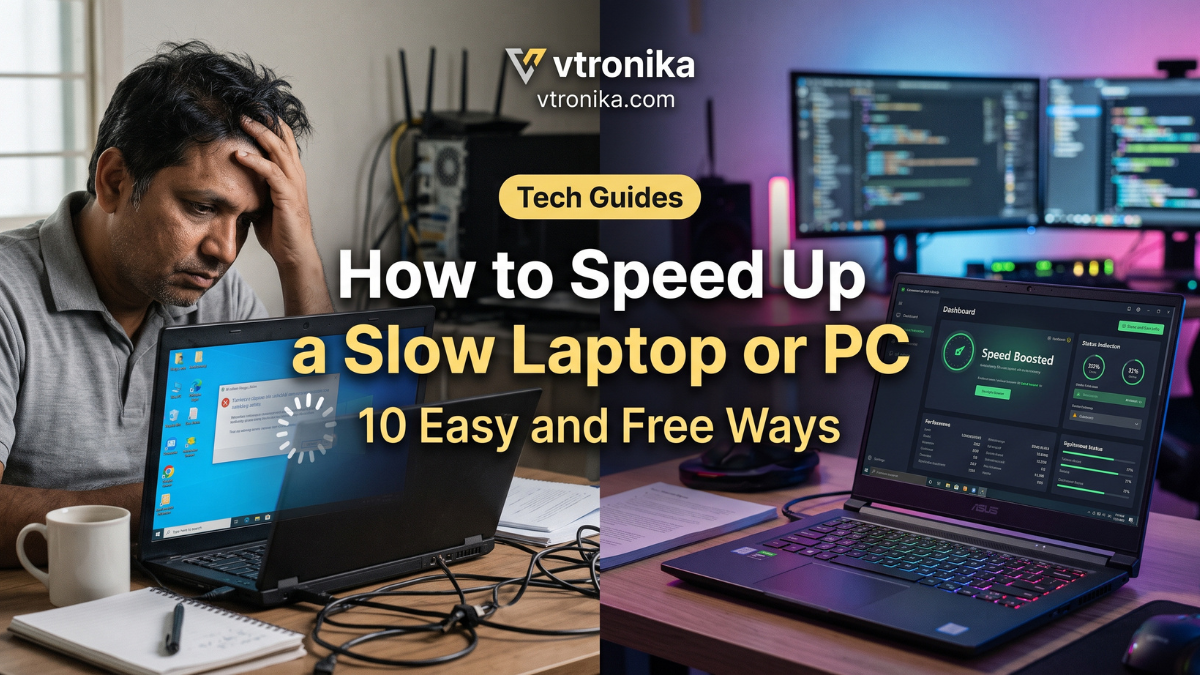
Article 1: Master the Windows Startup Sequence to Reclaim System Boot Speeds
Why Startup Bloat Cripples Modern Machines
When a Windows PC boots, it does not just load the operating system; it triggers dozens of third-party helper services, update checkers, and launch daemons. Programs like Spotify, Discord, Adobe Creative Cloud, Steam, and cloud sync clients register themselves into startup folders and registry keys during installation. Over months of use, these applications collectively congest your processor and saturate drive input/output operations (I/O) the moment you turn on your machine, turning a potential 15-second boot time into a frustrating multi-minute wait.
Step-by-Step Optimization
- Right-click the Windows Taskbar and select Task Manager, or press
Ctrl + Shift + Esc. - Click More details if Task Manager opens in compact view, then switch to the Startup tab (or Startup apps in Windows 11).
- Review the column labeled Startup impact. Items tagged as High consume significant processor cycles and storage throughput on boot.
- Right-click non-essential programs (such as game launchers, torrent clients, media players, and chat applications) and select Disable.
- Keep essential hardware utilities enabled, specifically audio drivers (Realtek), touchpad utilities (Synaptics), and graphics control panels (NVIDIA, AMD, Intel).
Realistic Performance Gain
Disabling heavy startup applications typically cuts system boot times by 30% to 60%. More importantly, it immediately frees up 1 GB to 3 GB of system RAM, keeping memory channels open for your actual active applications.
Article 2: Tame Browser Resource Hogging by Eliminating Tab and Extension Overhead
How Web Browsers Monopolize RAM and CPU Resources
Modern web browsers—including Google Chrome, Microsoft Edge, Brave, and Mozilla Firefox—rely on multi-process architectures. Each individual tab, active iframe, and installed browser extension runs in an isolated sandbox process. A single dynamic web page loaded with video players, tracking scripts, and advertisements can demand anywhere from 300 MB to 1 GB of RAM. When combined with several lingering extensions, the browser becomes the primary source of system slowdowns, causing cursor lag and sluggish window switching.
Step-by-Step Optimization
- Audit Extensions: Navigate to
chrome://extensions(oredge://extensions) and delete every add-on you do not actively rely upon every week. Prioritize removing coupon finders, VPN free trials, and legacy ad blockers in favor of efficient, lightweight solutions like uBlock Origin. - Activate Native Memory Management:
- In Chrome, click the three-dot menu, go to Settings > Performance, and turn on Memory Saver. This automatically puts inactive background tabs to sleep.
- In Edge, go to Settings > System and performance and enable Sleeping Tabs.
- Use the Built-In Browser Task Manager: Press
Shift + Escwhile inside your browser to inspect real-time resource distribution. End processes for stubborn pages or runaway extensions directly from this panel.
Realistic Performance Gain
Eliminating unnecessary extensions and putting dormant tabs to sleep can reduce overall browser memory usage by 40% to 50%, eliminating out-of-memory errors and preventing hard drive pagefile thrashing.
Article 3: Purge Temporary Cache and System Clutter Using Native Tools
How Junk Files Degrade Storage Drive Efficiency
Operating systems, web browsers, and productivity apps generate massive quantities of scratch files, crash dumps, thumbnail caches, and unfinished install fragments. Over time, these files accumulate in directories like C:\Windows\Temp and AppData\Local\Temp. On Solid State Drives (SSDs), severely congested storage spaces hinder the controller’s wear-leveling algorithms and garbage collection mechanisms, resulting in pronounced write-speed degradation and delayed software loading.
Step-by-Step Optimization
- Press
Windows Key + R, type%temp%, and pressEnter. - Press
Ctrl + Ato select all files, followed byShift + Deleteto permanently remove them. Skip any files currently locked by open system processes. - Open the Run dialog again, type
temp, pressEnter, and clear the administrative temporary directory using the same method. - Press
Windows Key, type Disk Cleanup, right-click it, and select Run as administrator. - Select your main system drive (
C:), check the boxes for Temporary files, Thumbnails, DirectX Shader Cache, and Previous Windows installation(s), then click OK to execute the cleanup.
Realistic Performance Gain
A deep system purge regularly reclaims 5 GB to 30 GB of storage space. Rebuilding bloated thumbnail caches and shader caches also resolves micro-stutters inside Windows File Explorer and graphic-intensive tasks.
Article 4: Streamline Background Applications and Telemetry Services
The Impact of Invisible Windows Background Tasks
Even when your screen is clear of open windows, dozens of background tasks continue to ping external servers, update system components, index hard drive sectors, and process sync queues. Windows universal apps (such as News, Weather, and preinstalled entertainment portals) frequently run persistently in the background. On systems with four-core processors or limited hardware threads, this constant background activity starves primary foreground applications of computing power.
Step-by-Step Optimization
- Open Windows Settings (
Windows Key + I). - Go to Apps > Installed apps (or Privacy > Background apps on Windows 10).
- For individual apps you do not need running passively, open their advanced options and set Background app permissions to Never.
- Disable unnecessary search indexing:
- Type Indexing Options in the Start search and open it.
- Click Modify, and uncheck large directories that you rarely search via the Windows search bar (such as developer folders, video archives, or temporary project files).
- Adjust privacy telemetry by switching diagnostic data transmission from Optional to Required only inside the Privacy & Security settings panel.
Realistic Performance Gain
Quieting background applications reduces idle CPU utilization by 5% to 15%, which directly reduces cooling fan noise, lowers operating temperatures, and extends laptop battery life.
Article 5: Eradicate OEM Bloatware and Unused Software Suites
Understanding the Cost of Factory Software Preloads
Most major PC manufacturers ship computers preloaded with branded control centers, trial antivirus suites, multimedia toolbars, and registration reminders. These programs often integrate deeply into your system by registering background services and scheduled tasks that run with root privileges. In addition, software you installed months or years ago may leave persistent updater executables active long after you stopped using the primary product.
Step-by-Step Optimization
- Open Windows Settings and select Apps > Installed apps.
- Sort the installed applications list by Size or Install date to identify large, forgotten packages.
- Uninstall redundant security suites (such as McAfee, Norton, or trial-tier antivirus utilities), replacing their function with the lightweight, built-in Windows Security suite.
- Remove manufacturer-specific support assistants and telemetry updaters (e.g., HP Support Assistant, Dell SupportAssist) unless you explicitly need them for automated firmware flashes.
- If an uninstaller leaves stubborn folders or broken registry hooks behind, employ a free, reputable uninstallation utility such as Geek Uninstaller to wipe the lingering remnants.
Realistic Performance Gain
Removing bloatware cleans up multiple background threads, frees system memory, and significantly reduces random Windows Explorer crashes and context-menu freezes.
Article 6: Neutralize System-Draining Malware and Crypto Miners
Why Malicious Software Silently Degrades Hardware Output
Not all malware damages your files; modern threats are often engineered for stealth. Adware, tracking trojans, browser hijackers, and unauthorized cryptocurrency miners (like Monero cryptojackers) operate discreetly in the background. They intentionally consume substantial portions of your CPU and GPU capacity to mine digital tokens or route network packets through your connection, leaving your laptop hot, unresponsive, and painfully slow.
Step-by-Step Optimization
- Press
Windows Key, type Windows Security, and open the application. - Navigate to Virus & threat protection, and select Scan options.
- Choose Microsoft Defender Antivirus (offline scan) and click Scan now. Your PC will reboot into a clean, minimal environment to isolate and delete rootkits that hide while Windows is running.
- After booting back into Windows, download the free version of Malwarebytes to perform a secondary, independent on-demand sweep for zero-day adware, PUPs (Potentially Unwanted Programs), and modified browser shortcuts.
- Open Task Manager, click the Processes tab, and monitor the CPU column. If any unfamiliar process spikes to 80%–100% when the computer is idle, research the executable name to verify its authenticity.
Realistic Performance Gain
Eliminating hidden miners and adware restores lost processor cycles instantly, dropping pegged CPU loads back to healthy baseline levels between 1% and 5% during idle conditions.
Article 7: Optimize Visual Animations and UI Effects for Lower-Tier Hardware
The GPU and Window Server Overhead of Aero and Acrylic Effects
Windows incorporates dozens of subtle graphical effects designed to enhance usability and aesthetic appeal. These include drop shadows behind mouse cursors, translucent acrylic blur effects on app windows, smooth-scrolling physics, and taskbar thumbnail animations. On laptops relying on entry-level integrated graphics (like Intel UHD Graphics), rendering these composite desktop visual layers consumes precious memory bandwidth and introduces perceptible latency during navigation.
Step-by-Step Optimization
- Press
Windows Key + R, typesysdm.cpl, and hitEnterto open the classic System Properties panel. - Switch to the Advanced tab, and under the Performance section, click Settings.
- Under the Visual Effects tab, you have two primary routes:
- Select the radio button Adjust for best performance to strip away all visual effects instantly.
- Choose Custom, disable all options, and manually re-enable only Smooth edges of screen fonts and Show thumbnails instead of icons to keep text legible and images previewable.
- Open Windows Settings, go to Accessibility > Visual effects, and toggle off Transparency effects and Animation effects.
Realistic Performance Gain
Disabling window transitions and transparency removes desktop rendering latency, making window minimizations, folder openings, and workspace switches feel immediate, especially on integrated GPUs.
Article 8: Configure Storage Sense and Schedule Native Disk Optimization
Maintaining File System Health on SSDs and Traditional HDDs
Modern file systems require routine maintenance to run reliably. Solid State Drives rely on the TRIM command, which tells the SSD controller which memory blocks contain invalid data so they can be wiped internally before new write cycles occur. Traditional mechanical hard disk drives (HDDs), on the other hand, suffer from file fragmentation, where parts of a single file end up scattered across different physical sectors, causing slow read heads to search continuously.
Step-by-Step Optimization
- Enable Automated Maintenance:
- Open Windows Settings and head to System > Storage.
- Toggle Storage Sense to On. Click into the settings to configure it to purge Recycle Bin files and temporary data automatically every week or month.
- Execute Drive Optimization:
- Press the
Windows Key, type Defragment and Optimize Drives, and launch the utility. - Check the Media type column.
- For an SSD, click Optimize to send an immediate TRIM signal.
- For an HDD, click Analyze; if fragmentation is over 10%, click Optimize to systematically defragment scattered file blocks.
- Press the
- Verify that Scheduled optimization is turned on and set to run weekly.
Realistic Performance Gain
Running TRIM on SSDs prevents degraded write speeds over time, keeping save and install speeds stable. On mechanical drives, defragmentation can shave several seconds off file load times and reduce drive thrashing noises.
Article 9: Overhaul Windows Power Plans and Thermal Throttling Behaviors
How Power Management Strategies Throttle Clock Speeds
Laptops are engineered by default to prioritize battery preservation over peak performance. Windows power plans frequently cap processor clock speeds, restrict bus frequencies, and park CPU cores prematurely to save energy. Worse, if your device accumulates internal dust, the hardware will dynamically trigger thermal throttling—severely cutting clock speeds down to sub-1.0 GHz levels to prevent the silicon from overheating.
Step-by-Step Optimization
- Switch to High Performance Mode:
- Press
Windows Key + R, typepowercfg.cpl, and pressEnter. - Change your active plan from Balanced or Power Saver to High Performance (or Ultimate Performance if available).
- On Windows 11 laptops, click the battery icon on your taskbar, navigate to battery settings, and slide the Power mode slider directly to Best performance.
- Press
- Inspect Physical Cooling:
- Elevate the bottom chassis of your laptop by half an inch using a stand or riser to increase fresh air intake.
- Use short bursts of compressed air to clear out dust build-up from intake grilles and exhaust vents.
- Avoid using laptops on soft surfaces like beds, blankets, or rugs that block exhaust channels.
Realistic Performance Gain
Removing software power ceilings and restoring cool airflow lets processors sustain their designated boost frequencies under load without thermal throttling, resolving unexplained slowdowns during heavy tasks.
Article 10: Update Critical Chipset, Graphics, and Windows Operating Components
Why Driver Incompatibilities and Memory Leaks Sabotage Speed
Drivers serve as the operational bridge between your operating system and physical hardware components. Outdated or corrupt drivers—particularly for graphics chips, motherboard chipsets, and network controllers—frequently trigger micro-freezes, blue screens (BSOD), and system-wide memory leaks where non-paged RAM pools fail to release after tasks finish. Updating these core components ensures your hardware utilizes modern scheduling optimizations.
Step-by-Step Optimization
- Run Core Windows Updates:
- Go to Settings > Windows Update (or Update & Security).
- Click Check for updates and allow all critical patches to download and install.
- Open Advanced options, look under Optional updates, and select any driver updates listed for your hardware.
- Update Dedicated and Integrated Graphics:
- Avoid relying purely on generic Windows drivers for graphics rendering.
- Download the official companion app for your GPU: Intel Driver & Support Assistant, AMD Software: Adrenalin Edition, or NVIDIA GeForce Experience / NVIDIA App.
- Install the latest stable game-ready or studio driver release to receive current hardware bug fixes.
- Finish the update process with a clean system restart to allow the operating system to replace system-locked binaries cleanly.











![1. Profitable Niche Selection & Technical Scope Definition: Aik kamyab tech review platform launch karne ke liye broad tech market ke bajaye targeted micro-niche select karna sab se pehla qadam hai, jahan aap broad electronics cover karne ke bajaye specific hardware segments maslan smart home automation, budget mechanical keyboards, portable power stations, ya AI-driven creator gadgets par focus karte hain. Micro-niche target karne se search engines par topical authority jaldi build hoti hai, low-competition keywords rank karna aasan ho jata hai, aur high-intent buyers ki targeted traffic attract hoti hai jo directly conversion rate barhane mein madadgar sabit hoti hai. 2. Modern Web Architecture, UX & Speed Optimization: Website structure aur technical foundation review sites ke liye direct revenue driver ka kaam karti hai, is liye clean, light-weight aur responsive CMS framework chunna zaroori hai jo fast loading speed deliver kare. Core Web Vitals optimize karna, mobile-first responsive layout design karna, clean visual typography use karna, aur comparison tables ko dynamic render karna visitor retention ko improve karta hai, kyunki fast loading pages reader bounce rate kam karte hain aur user ko buying guides aur product tables tak asani se pohanchate hain. 3. Intent-Driven Keyword Strategy & High-Converting Content Formats: Tech review traffic ko monetize karne ke liye content creation ka focus high commercial intent search terms par hona chahiye, jahan users already purchase decision ke qareeb hotay hain. Detailed hands-on single product reviews, comprehensive head-to-head comparison battles, "Best [Category] for [Use Case]" curated roundups, aur troubleshooting how-to guides regular basis par publish karni chahiye, jin mein user ke pain points, battery life, real-world benchmarks, pros, aur cons clear aur honest tareeqay se highlight kiye gaye hon. 4. Visual Credibility, Original Testing & E-E-A-T Compliance: Search engine algorithms aur smart consumers stock photos aur generic specifications ke bajaye genuine testing signals ko prefer karte hain, is liye real-world unboxing pictures, self-tested performance charts, aur honest product limitations dikhana trust build karta hai. Apni testing methodology ko openly document karna, detailed measurement data attach karna, aur original visual demonstrations include karna site ki credibility ko double karta hai, jis se affiliate link conversions naturally barh jati hain aur return-on-traffic optimize hota hai. 5. Strategic Affiliate Network Integration & Link Management: Monetization engine set karne ke liye premium global affiliate networks maslan Amazon Associates, AWIN, CJ Affiliate, ShareASale, aur niche-specific tech direct merchant programs par verified publisher profile create karni hoti hai. Links ko manage karne ke liye specialized affiliate link cloaking plugins use karna zaroori hai, jo automated geo-targeting enable karte hain taake US, UK, ya Asian visitors ko unke local regional storefronts par redirect kiya ja sakay, jis se international traffic ka commission leak hone se bach sake. 6. High-Converting Call-to-Action (CTA) & Price Comparison Elements: Plain inline hyperlinks ke muqablay visual elements conversions ko multi-fold accelerate karte hain, is liye har review section ke baad customized product comparison boxes, "Check Best Price" buttons, aur dynamic discount coupon alerts place karni chahiye. Yeh interactive boxes reader ki purchasing friction ko khatam karte hain, stock status clear dikhate hain, aur trust-building price-check buttons reader ko affiliate merchant store par click karne ke liye instant incentive provide karte hain. 7. Regulatory Compliance, FTC Disclosures & Legal Transparency: Affiliate networks ke accounts ko ban hone se bachane aur ethical publishing standards maintain karne ke liye transparent compliance policy follow karna lazmi hai. Har commercial article ke bilkul shuru mein clear FTC disclosure add karna, dedicated privacy policy, terms of service, aur affiliate relationship disclaimer pages publish karna na sirf platform account stability ensure karta hai, balki international ad compliance standards aur readers ke trust ko legal protection deta hai. 8. Traffic Diversification & Multi-Channel Retention Funnels: Sirf search engine algorithms par depend karna risky ho sakta hai, is liye audience retention ke liye multiple organic traffic funnels develop karne chahiye. Review summaries ko short video clips mein convert karke YouTube shorts aur tech forums par share karna, high-converting tech deals newsletter chalana, aur push notifications capture karna aik loyal subscriber base create karta hai, jo seasonal sales events maslan Black Friday, Cyber Monday, aur Prime Day par massive direct affiliate revenue deliver karta hai. 9. Analytical Tracking, Conversion Rate Optimization (CRO) & A/B Testing: Affiliate revenue scale karne ke liye data-backed decision making standard practice banani chahiye, jahan Google Analytics 4, heatmaps, aur affiliate dashboards ke zariye link performance track ki jaye. Mukhtalif button placements, anchor text variations, CTA colors, aur layout formats par A/B split tests run karna identify karta hai ke konsi positioning maximum clicks generate kar rahi hai, jis se un-monetized traffic leaks eliminate ho jate hain aur overall earnings per thousand visitors (RPM) maximize hoti hai. 10. Advanced Monetization Scaling & Direct Brand Partnerships: Jaise hi platform steady traffic aur targeted niche authority capture kar leta hai, earning channels ko standard low-margin affiliate links se naye high-ticket models par shift kiya ja sakta hai. High-paying direct SaaS affiliate partnerships join karna, hardware manufacturers se paid sponsored testing packages negotiate karna, exclusive display ad inventory sell karna, aur dedicated brand review slots secure karna overall revenue streams ko diversify karta hai, jo platform ko aik stable, multi-tier digital media business mein badal deta hai.](https://vtronika.com/wp-content/uploads/2026/10/Tech-Content-Monetization-A-Practical-Blueprint-For-Launching-A-Tech-Review-Site-Earning-Through-Affiliate-Marketing-Networks.png)