
Article 1: Duration Budgeting — Eliminating Digital Inertia
Digital interfaces operate within the constraints of human perception and neuro-motor feedback loops. When a user executes a tap, click, or keypress, the brain anticipates tactile visual acknowledgment within 100 milliseconds. When transitions run longer than necessary, they generate perceived friction—often referred to as digital inertia—making the system feel heavy regardless of raw code performance.
To prevent sluggishness, teams must enforce strict duration budgets mapped directly to spatial hierarchy:
- Micro-interactions (100ms–200ms): Toggles, icon morphs, button depress states, and radio selections. These must complete nearly instantaneously.
- Medium Transitions (200ms–300ms): Contextual menus, tooltips, segmented control switches, and expanding cards.
- Structural Shifts (300ms–400ms): Full-screen navigation, persistent drawers, and modal takeovers.
+--------------------------------------------------------------+
|                 STRICT UI DURATION BUDGETS                   |
|                                                              |
| [100ms - 200ms]      [200ms - 300ms]      [300ms - 400ms]    |
| Micro-interactions   Medium Expansions    Full Transitions   |
| (Toggles, Checks)    (Menus, Cards)       (Sheets, Modals)   |
+--------------------------------------------------------------+
Exceeding the 400ms threshold shifts user focus from task execution to passive observation, immediately breaking workflow immersion.
Article 2: The Linear Fallacy — Why Constant Velocity Breaks Immersion
Linear interpolation ($v = \text{constant}$) spreads displacement evenly across every millisecond of a transition. In the physical universe, objects must accelerate from rest and decelerate to a stop; nothing travels at constant velocity instantaneously. Because of this physical law, human vision flags linear UI motion as synthetic and rigid.
Beyond aesthetics, linear easing severely damages perceived responsiveness. Because velocity is uniform, the opening 50 milliseconds of a transition travel at a crawl. The beginning of an animation determines whether an interface feels snappy; linear curves burn those vital early frames at a fraction of the velocity needed to communicate instant feedback, creating the illusion that the UI is dragging or freezing under load.
Article 3: Front-Loaded Velocity — The Strategic Power of Ease-Out
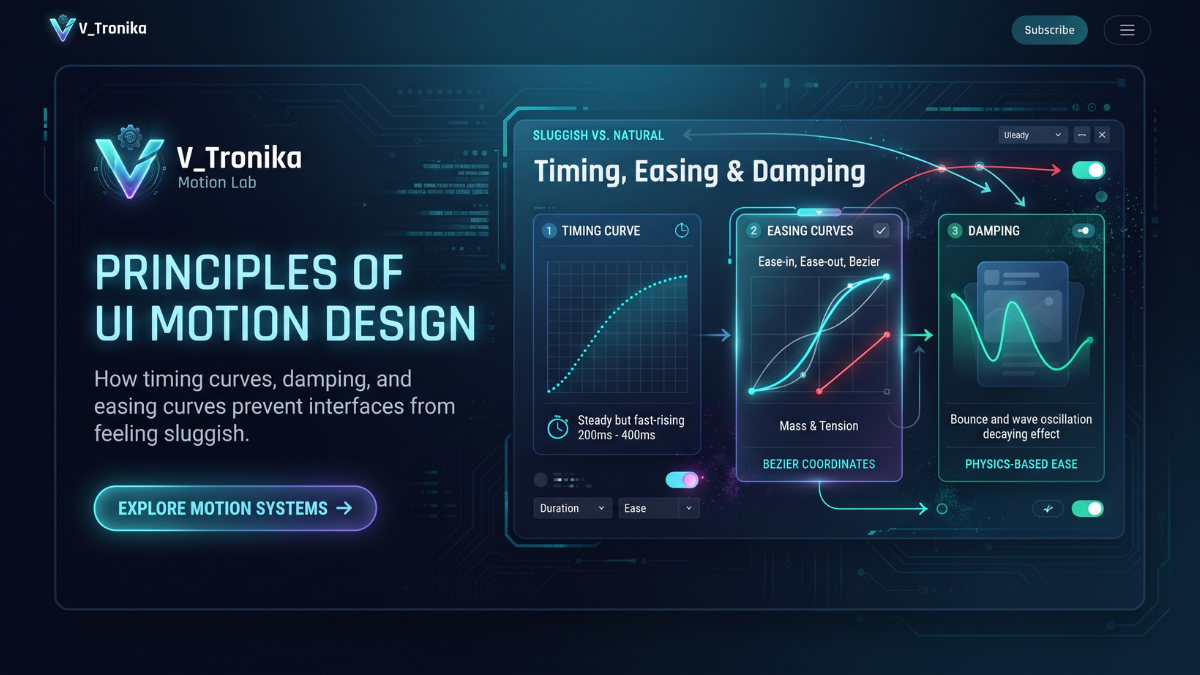
Ease-Out (Deceleration) represents the cornerstone curve of high-performance digital interfaces. Rather than easing into motion, an ease-out curve features an aggressive vertical incline on its displacement-versus-time graph, driving the element to maximum velocity immediately upon input.
Displacement
  ^
1 |        /----------------- (Gentle, settled landing)
  |       /
  |      /  <- Steep opening slope = Immediate velocity
  |     /
0 +----+--------------------> Time
By front-loading velocity, an incoming sheet, dialog, or drawer covers up to 80% of its travel distance within the first third of its total duration. The user gets immediate visual confirmation that their command was registered without waiting for an acceleration phase. The remaining duration is spent decelerating, allowing the visual cortex to parse incoming content without harsh visual stops.
Article 4: The Exit Asymmetry Principle — Fast Dismissals
Applying symmetrical easing and durations to an element’s entry and exit is one of the most common motion design anti-patterns. When an element enters the viewport, the user requires visual orientation to process where it came from and what it contains. When an element is dismissed, the context is already understood and the user’s intent is to clear the workspace.
[User Action: Open Modal]   --> [Entry: ~300ms, Ease-Out]  --> Information Read
[User Action: Close Modal]  --> [Exit:  ~175ms, Ease-In]   --> Workspace Cleared
To eliminate navigational drag, implement asymmetric properties:
- Entrances (250ms–350ms): Employ Ease-Out curves to facilitate orientation and smooth arrivals.
- Exits (150ms–200ms): Employ Ease-In curves (acceleration off-screen) at roughly half to two-thirds the entrance duration.
Accelerating dismissed components out of sight immediately returns control of the underlying interface to the user.
Article 5: Mastering Cubic-Bézier Geometry for High-Speed UI
CSS and modern graphics engines define timing via two control handles on a cubic-bézier curve: $P_1(x_1, y_1)$ and $P_2(x_2, y_2)$ spanning between $(0, 0)$ and $(1, 1)$. Default easing presets, such as standard CSS ease, feature conservative slopes that feel languid in data-dense or productivity-focused environments.
CSS Default Ease:   cubic-bezier(0.25, 0.10, 0.25, 1.0)  -> Balanced, but slow launch
Performance Curve:  cubic-bezier(0.05, 0.70, 0.10, 1.0)  -> Instant snap, controlled stop
Value (y)
  ^
1 |                  P2 (x2, y2)
  |                 /  .
  |         P1     /   .
  |       (x1, y1)/    .
  |        .     /     .
0 +--------.----+------.-----> Time (x)
          x1          x2
By pulling the first handle $P_1$ high on the vertical axis while clamping $x_1$ close to zero, designers create an instantaneous initial burst. The animated element snaps off the mark immediately and spends its final milliseconds settling gently, giving the user a crisp, responsive feel.
Article 6: Spring Physics Over Time Clocks — Dynamic Momentum
Fixed-duration curves rely on an arbitrary internal clock: whether a user swipes a card 20 pixels or flicks it across the entire display, the animation runs for the exact duration specified in the code. In touch-first interfaces, this disconnection from input velocity makes the screen feel like a rigid projection rather than a physical surface.
Spring mechanics replace fixed timelines with kinetic variables:
- Mass ($m$): Dictates the simulated weight and momentum of the layer.
- Stiffness ($k$): The tension pulling the layer toward its target coordinates.
- Damping ($c$): The frictional resistance that dissipates energy.
When a user flicks an element, the initial velocity vector injects directly into the spring simulation. High-velocity gestures yield rapid dismissals, while low-velocity taps resolve gently, removing artificial timing barriers.
Article 7: Damping Ratio Calibration — Stopping the Infinite Wobble
While spring systems introduce organic tactile qualities, misconfigured damping quickly degrades responsiveness. Damping behavior is governed by the damping ratio ($\zeta$):
| Damping State | Ratio (ζ) | Physical Behavior | UX Outcome |
| Under-Damped | $\zeta < 0.7$ | Excessive oscillation across target | Distracting; delays clickable state |
| Over-Damped | $\zeta > 1.0$ | Asymptotic crawl toward destination | Viscous, heavy, and sluggish |
| Critically Damped | $\zeta = 0.8 – 1.0$ | Swift return to equilibrium with zero bounce | Sharp, tactile, and immediately interactive |
Displacement
  ^
  |    /\             <- Under-Damped (Wastes time oscillating)
  |   /  \  /\
  |--/----\/- \------ <- Target Position
  | /                 <- Critically Damped (Snaps and settles instantly)
  |/                  <- Over-Damped (Sluggishly creeps to rest)
0 +------------------> Time
To maintain an agile interface, design systems should target damping ratios between 0.80 and 1.0. This eliminates lingering wobbles and ensures components stabilize the moment motion ceases.
Article 8: Choreography and Micro-Staggering
When populating dense layouts—such as analytical dashboards, media grids, or card feeds—animating all items at once creates visual confusion. Conversely, animating items sequentially using coarse delays (such as 100ms per row) forces the user to wait seconds for full visual stability.
POOR (Coarse Cascade):
Card 1: [0ms ---- 250ms]
Card 2:                  [100ms ---- 350ms]
Card 3:                                     [200ms ---- 450ms]  Total = 450ms

OPTIMAL (Micro-Stagger):
Card 1: [0ms ---- 250ms]
Card 2:   [20ms ---- 270ms]
Card 3:     [40ms ---- 290ms]                                    Total = 290ms
To deliver rhythm without lag, use micro-staggering:
- Set entry offsets strictly between 15ms and 30ms per sibling.
- Cap the stagger loop after 4 to 6 items; allow all remaining entries to surface concurrently with the final batch.
The human eye registers the cascaded hierarchy, while total render time increases by a negligible 60ms to 90ms.
Article 9: Minimizing Travel Distance and Spatial Anchoring
Perceived speed is inversely related to displacement. If a component must travel across the full width or height of a viewport, it covers more distance per frame, which the visual system interprets as more demanding and time-consuming.
Techniques to compress visual distance:
- Anchor to Touch Origin: Expand contextual menus, detail sheets, and cards directly outward from the interactive node that triggered them.
- Scale-Fade over Full Translation: Rather than sliding a modal from off-screen boundaries, scale it from 95% to 100% accompanied by an opacity fade.
- Tight Bounds: Limit spatial translations to travel distances between 16px and 48px.
Shortening physical travel vectors allows elements to settle faster while preserving clear spatial continuity.
Article 10: Technical Frame Budgets and GPU Offloading
Even mathematically optimal curves will feel sluggish if the rendering engine misses refresh windows. On a standard 60Hz display, each frame must compute, render, and composite within 16.6ms; on a 120Hz display, that budget shrinks to 8.3ms.
+-------------------------------------------------------------+
| ENGINE PIPELINE EFFICIENCY                                  |
|                                                             |
| High Overhead (Triggers Layout/Paint): width, top, margin   |
|                                                             |
| GPU Accelerated (Composite-Only):      transform, opacity   |
+-------------------------------------------------------------+
Animating properties that impact page geometry (such as width, height, left, or margin) forces the CPU to recalculate document layouts and re-rasterize pixels on every frame, generating dropped frames (jank). Maintaining peak fluidity requires restricting animation code to composite-only properties—specifically transform (scale, translate, rotate) and opacity. Offloading motion to the GPU ensures timing curves execute uninterrupted regardless of heavy background logic.